
In this guide
In short
Build your first connected week by adding a few real commitments, planning dinners for the relevant days, and scheduling one household task with its supporting details. Then check those activities together in Calendar.
- The fixed commitment has the correct date and times.
- Both dinners appear on the intended days.
- Any recipe link was selected deliberately.
This walkthrough uses the English interface and assumes you can sign in and access Calendar, Work, Meal planner, and Household. Complete any required household setup before adding a room-based task. Feature access can depend on your plan. Use future dates from your own week when following the example.
You will create a small plan containing a work commitment, a shopping trip, two dinners, a household task, and a weekly review. Start with this small set before entering your entire life.
Write down the example week
Here is the plan we will enter. Times are illustrative and should be changed to fit your circumstances.
| Day | Activity | Where to enter it | Detail to preserve |
|---|---|---|---|
| Monday, 17:30 | Grocery shopping | Calendar | Missing ingredients and shop location |
| Monday, 19:00 | Tomato pasta | Meal planner | Available recipe link or preparation note |
| Tuesday, 17:00–18:00 | Work call | Work → Meetings | Call details and a realistic end time |
| Tuesday, 19:00 | Eggs on toast | Meal planner | Simple dinner after the call |
| Saturday, 10:00–10:20 | Check extractor filter instructions | Household | Kitchen, optional appliance, and manual location |
| Sunday, 17:00–17:20 | Weekly review | Calendar | Review next week's commitments and supplies |
The purpose is to keep the different kinds of detail attached to the right activity while making the schedule understandable as a whole.
Add the work commitment and check Calendar
- Open Work, then Meetings, and use the add control to create a meeting.
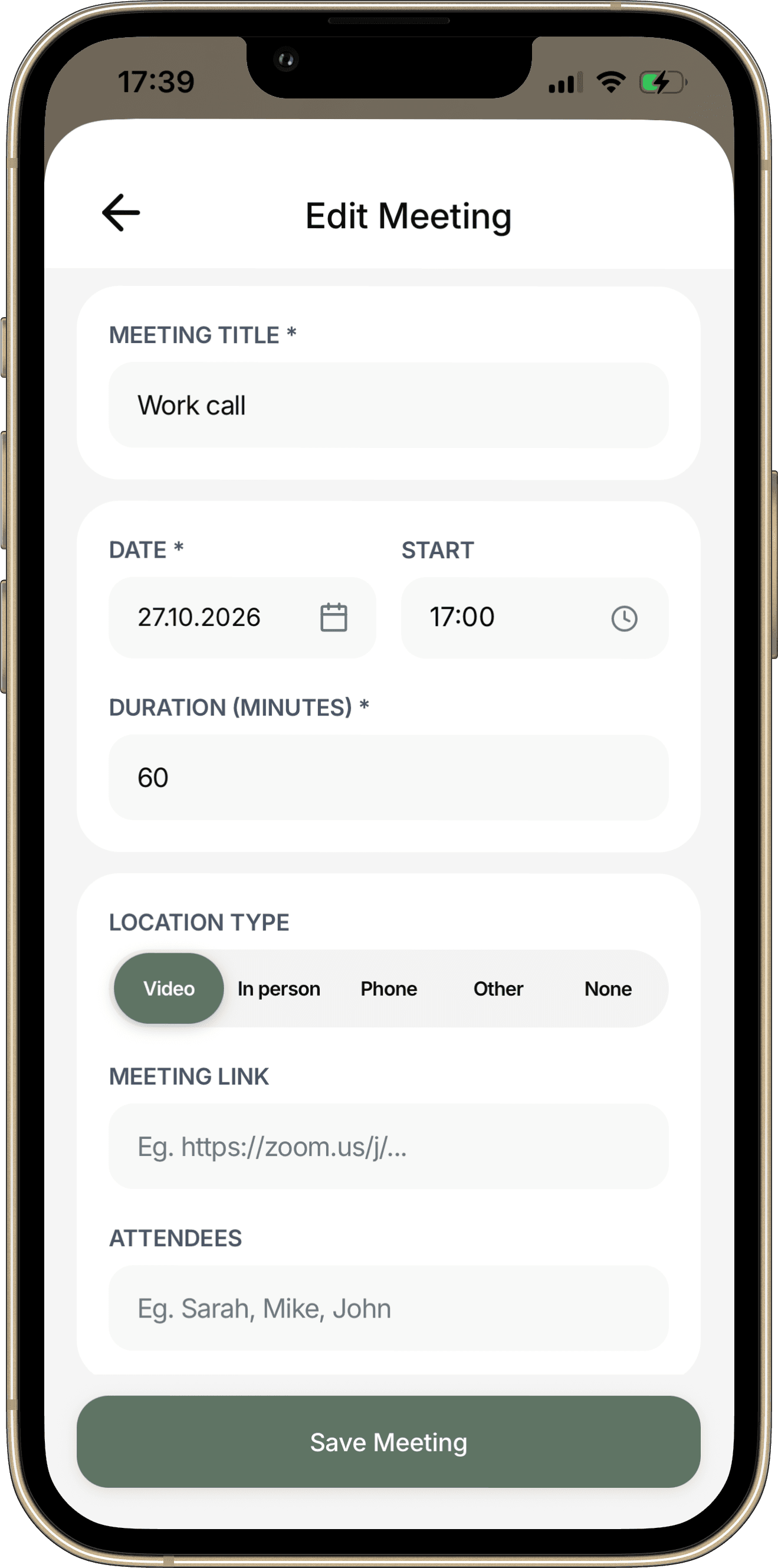
- Enter "Work call" in Meeting title.
- Choose Tuesday in Date and set Start to 17:00.
- Set Duration (minutes) to 60 so the call ends at 18:00.
- Choose the appropriate Location type. For a video call, enter the actual joining link and any useful attendee or agenda details.
- Select Add Meeting. When editing an existing meeting, the control is Save Meeting, as shown below.
- Open Calendar and select Tuesday to check the saved call's date and time.
If your call requires preparation or travel, create time for that separately. The example uses a one-hour call; it does not imply that every surrounding hour is free capacity.
Add two dinners in Meal planner
- Open Meal planner and select the Menu tab.
- Choose Monday using the date controls.
- Use the plus button in the Dinner section.
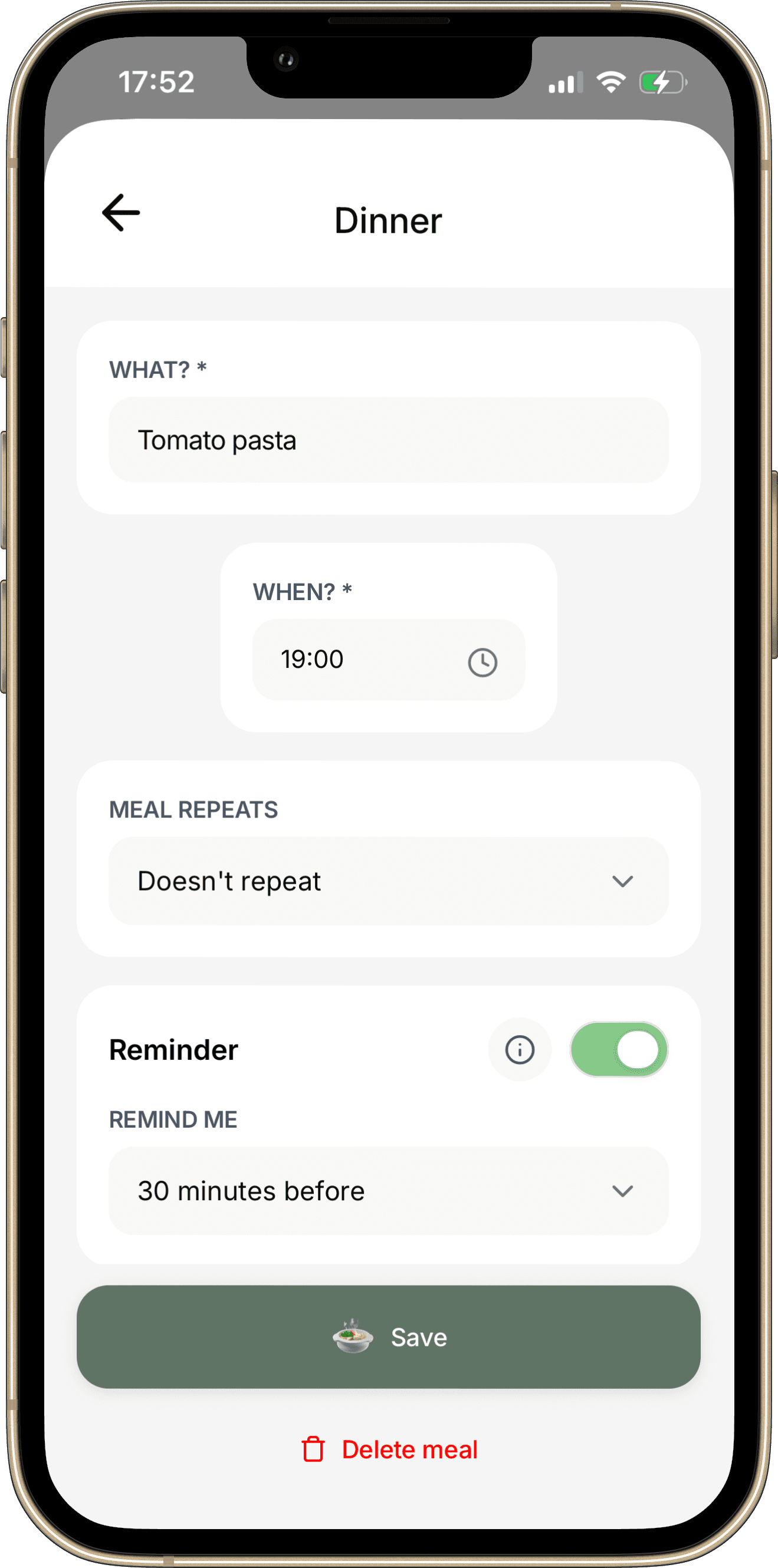
- Enter "Tomato pasta" in What?. If an appropriate saved recipe appears in the suggestions, select it to connect that recipe. Typing a name alone does not select a recipe.
- Use When? to set the meal time to 19:00. Check the selected date and keep a single occurrence.
- Add a useful Note, such as "Check tomatoes before shopping; allow preparation time before dinner."
- Select Add to create the meal, or Save when editing an existing meal as shown below. Then repeat for Tuesday's "Eggs on toast" at 19:00.
Return to Calendar and inspect Monday and Tuesday. The meals should appear on their selected dates alongside the other scheduled activities.
A meal's serving time is not a reserved cooking block. Add a preparation task if you need that time to be explicitly visible.
Schedule the shopping trip before the first dinner
In Calendar, select Monday, use the plus button, and create "Grocery shopping" at 17:30. Choose the appropriate category and add a realistic end time.
Put the missing ingredients in Note after checking what is available at home. For this small example, the list might be tomatoes, bread, and eggs. Change it to match your actual recipes and supplies.
Save the task and check whether shopping, travel, and cooking can all happen before the 19:00 meal. If they cannot, move the shop earlier or choose a simpler dinner.
This is a manual planning step. Adding a meal does not mean a shopping trip has automatically been scheduled.
Add a household task with context
- Open Household, then Chores & Maintenance.
- Select the add control.
- In Task name, enter "Check extractor filter instructions."
- Choose Saturday and set Start time to 10:00 and End time to 10:20.
- Select the kitchen in Room. If the extractor already exists as an appliance, select it; otherwise keep the task unlinked to an appliance.
- In Notes, record where to find the manual and what you need to establish: the recommended care procedure, interval, and any replacement-part details.
- Keep this as a single task and select Add Task.
If no suitable room is available, complete the household room setup first. When the instructions are known, you can plan the appropriate maintenance action using that information.
Check Saturday in Calendar to confirm that the household task has the expected date and time.
Add the review and inspect the finished plan
Create "Weekly review" in Calendar for Sunday, 17:00–17:20. Add a short note: "Check unfinished tasks, upcoming commitments, meals, shopping, household work, and payments."
Review the days you populated. Confirm that the shopping happens before the meal that needs it, Tuesday's dinner fits after the call, and Saturday's task has enough context to start.
Keep this first review as a single occurrence. Once the timing works for you, use available recurrence settings if they suit your routine and access plan.
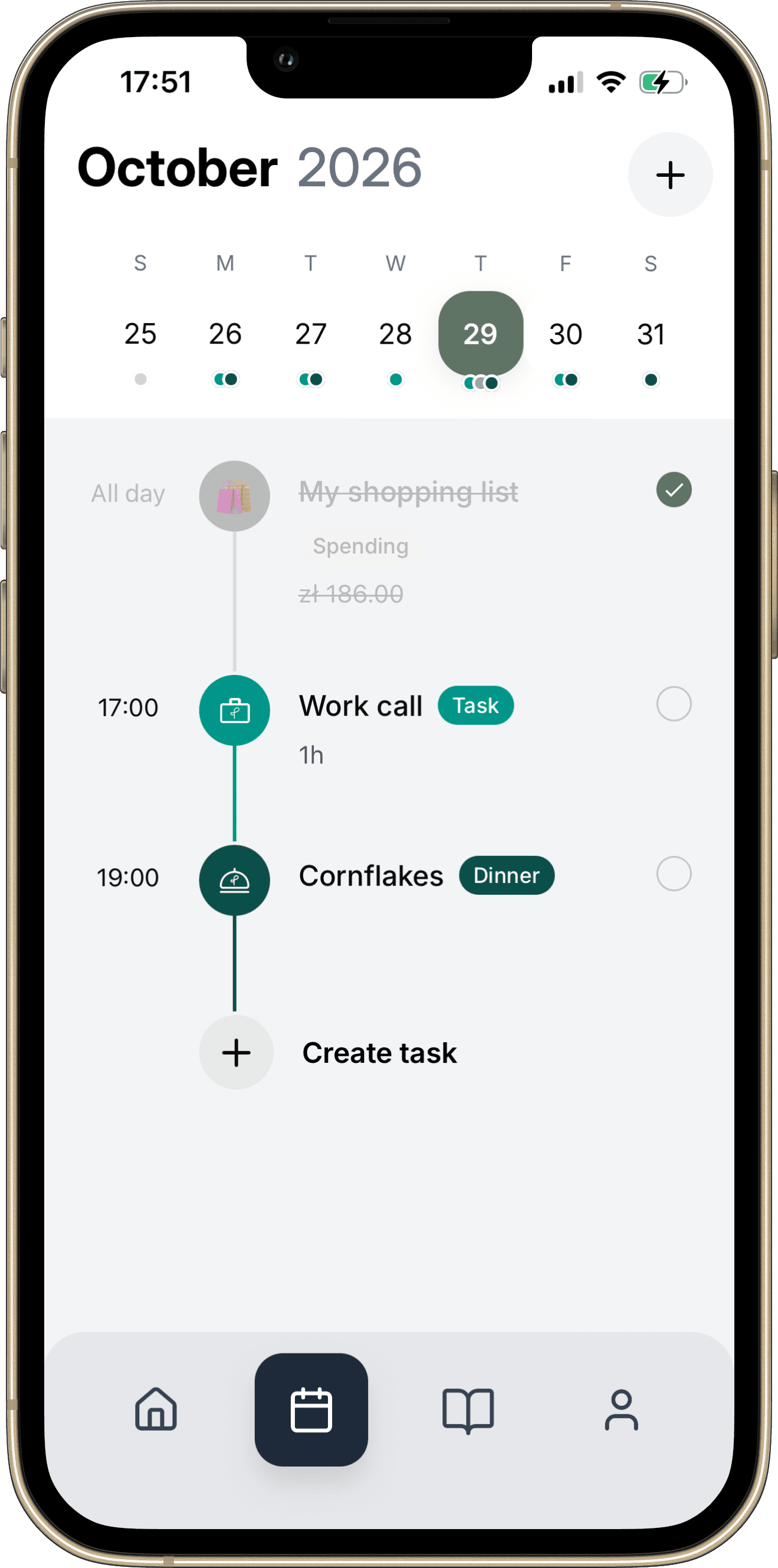
The screenshot below is a separate Thursday example of the combined agenda, not the completed six-entry walkthrough. Check Monday, Tuesday, Saturday, and Sunday in your own saved plan.
Your first-week checklist
- The fixed commitment has the correct date and times.
- Both dinners appear on the intended days.
- Any recipe link was selected deliberately.
- Shopping and preparation fit before dinner.
- The household task has the correct room and useful notes.
- Each saved item appears in the expected place.
- A weekly review is scheduled.
- The plan still contains room for ordinary delays.
Common questions
Do I need to set up every module now?
No. Begin with the areas used by your first week's plan. Add more detail when a real responsibility needs it.
What if an activity does not appear where I expect?
Check that the save completed, that the date is correct, and that you are viewing the intended day. Check connection or error messages before creating another copy.
What if I want to repeat an activity?
Use its recurrence controls where available. When editing a repeated item later, check whether you are changing one occurrence or future occurrences before confirming.
Continue with How to Do a Weekly Review when you are ready to adjust your first plan.
Make it your own
First connected week worksheet
Use the blank worksheet to plan your own example. Print it or save it as a PDF from your browser. It is a planning document and does not import records into the app.
Open printable worksheetKeep the details with the plan.
Explore how Calendar fits into Planique Planner's connected approach to everyday planning. Planique is in early access.